
Re-enrolling a Done Member
Members may need to return to care management after they have been marked as Done. There are two ways to re-enroll a member: returning members can re-enroll themselves instantly through a re-enrollment link, or you can manually update the member state from the dashboard.
Self-Service Re-Enrollment (New)
Re-enrollment links delivered through templated messages or marketing outreach (email, SMS, or direct mail with QR codes) take returning members directly into a streamlined re-activation flow. The link works across the iOS app, Android app, and Web Portal. After the member selects the link and logs into the app or Web Portal, the system automatically verifies the following criteria before completing re-enrollment:
- The member is eligible for re-enrollment.
- The member’s status is Done.
- The access code embedded in the deep link is associated with the same dashboard as the member.
If all criteria are met, the system moves the member from Done to Digital Management and enrolls the member in a new care program starting the same day. Content from the new care program displays on the member’s checklist immediately, and the Day 1 Activation banner displays to guide the returning member into the new care program experience. No member action is required.
Members do not need to reset their credentials or create a new account. Login information from the prior enrollment remains valid.
Note: This self-service path is not available for caregivers. Caregiver re-enrollment continues to require user approval through the manual workflow described below.
Manual Re-Enrollment from the Dashboard
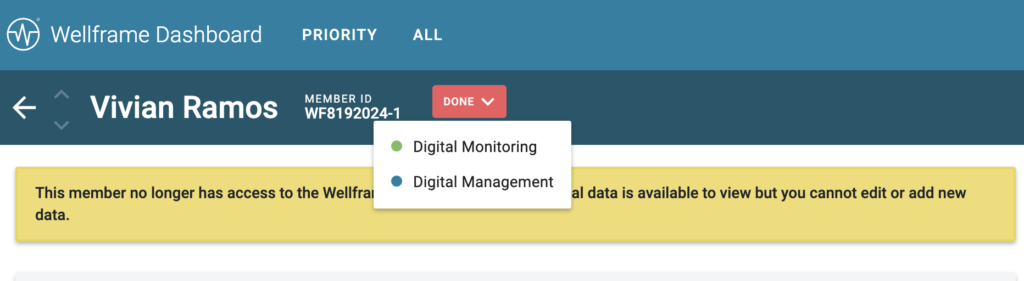
You can also re-enroll a member directly from the dashboard. From the Member Profile, select the Member States dropdown menu, and select either Digital Monitoring or Digital Management.
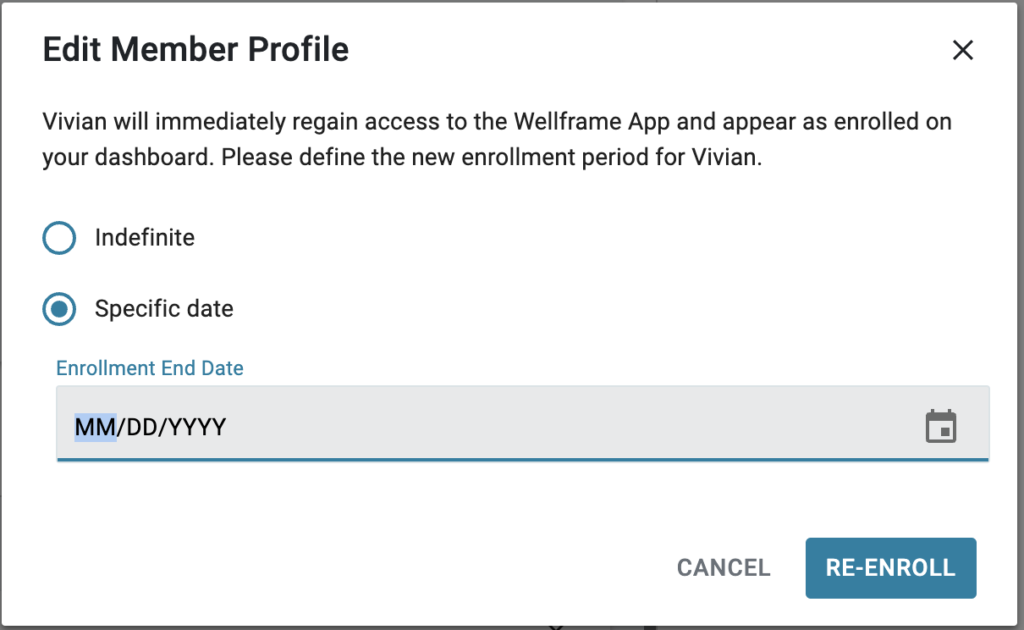
Select an Access Window for the member: Indefinite, or a Specific Date if the member is re-enrolling for a time-based reason.
After Manually Re-enrolling Your Member
- Add yourself to the Care Team.
- Select the Care Team option in the upper right of the Member Profile.
- Select Edit Care Team.
- In the Care Team section, search for and select your name to add yourself. You can then choose the appropriate Primary for the member and select Save.
- Re-Start previous Care Programs or add New Care Programs.
- Care Programs are not automatically restarted when you re-enroll a previously onboarded member through the manual workflow. (For self-service re-enrollment, the system enrolls the member in a new care program automatically.)
- Care Programs are not automatically restarted when you re-enroll a previously onboarded member through the manual workflow. (For self-service re-enrollment, the system enrolls the member in a new care program automatically.)
- Re-Start the Step Counter.
- Like care programs, the daily checklist task for members to track their step count activity through the pedometer in their phone is not automatically reactivated through the manual workflow.
- Restart the Step Counter by adding a new step goal for the member.
- Let the member know they can log back in.
- Members marked as Done are no longer logged out of the app. Their credentials remain valid, and they can resume use as soon as their member state is updated.
- If the member has forgotten their password, they can select the Forgot Password link on the app or Web Portal log in page.
- Important: If the member was not previously onboarded, they will need their Access Code and Onboarding Instructions re-sent to them.